
Back to Help Center

CRM help guide

Learn the CRM workflow from first lead to follow-up and win.

Use this page as the practical CRM guide for sales teams, admins, and managers who need to configure lead stages, follow-ups, communication, and reports.

Recommended first goal

Configure one clean lead pipeline.

Standard CRM workflow

1

Capture the lead

Create leads manually, import Excel files, collect public campaign form submissions, or capture leads from Meta Lead Ads, IndiaMART, WooCommerce, webhooks, IVR, and call integrations.

2

Qualify and assign

Review the lead details, set priority, add source context, and assign the right sales owner or team.

3

Move through the pipeline

Track each lead through configured stages. Default stage keys include New, Contacted, Follow Up, Interested, Proposal, Won, and Lost.

4

Follow up with context

Create tasks, schedule reminders, log notes, and keep WhatsApp or email conversations connected to the lead timeline.

5

Win, close, or follow up

Mark the lead outcome, continue follow-ups when needed, and review reports to understand source quality, staff activity, and campaign performance.

CRM video tutorials

Add YouTube IDs here when CRM walkthrough videos are ready. These slots are prepared for setup, lead workflow, and report training.

Coming soon

CRM setup walkthrough

Use this slot for a YouTube video that explains first-time CRM setup.

Coming soon

Lead stage workflow

Reserve this for a tutorial showing how a lead moves through CRM stages.

Coming soon

CRM reports overview

Add a short reporting video here for dashboards, campaign ROI, and team activity.

Visual guide areas

Add screenshots only where they help users recognise the real CRM screen. These sections are ready for dashboard, follow-up, and campaign/report screenshots.
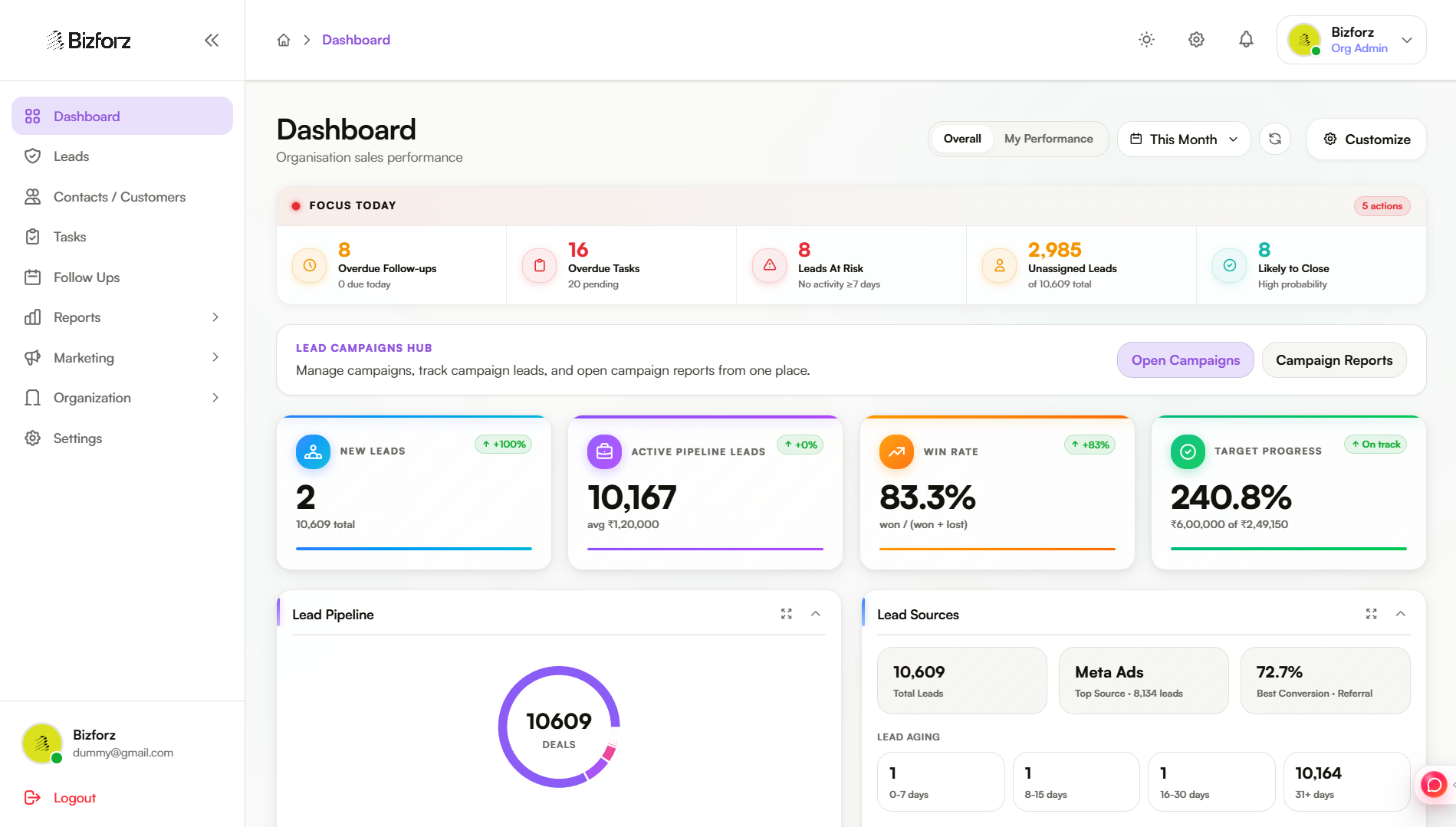
CRM dashboard

CRM dashboard

Use dashboard screenshots to help users recognize reports, lead metrics, and daily work areas.
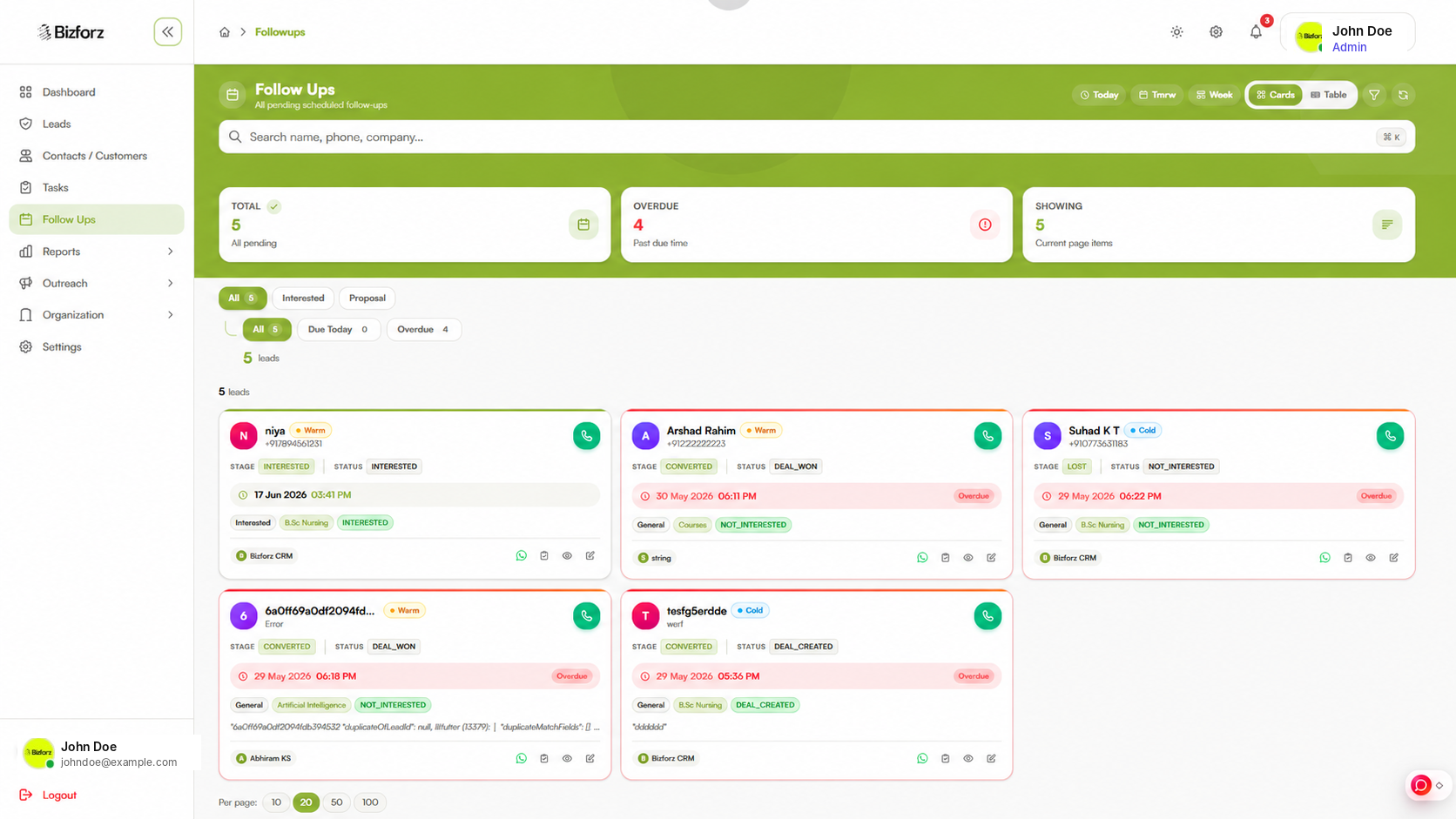
Follow-up view

Follow-up view

Show where users review pending follow-ups and decide what to do next.
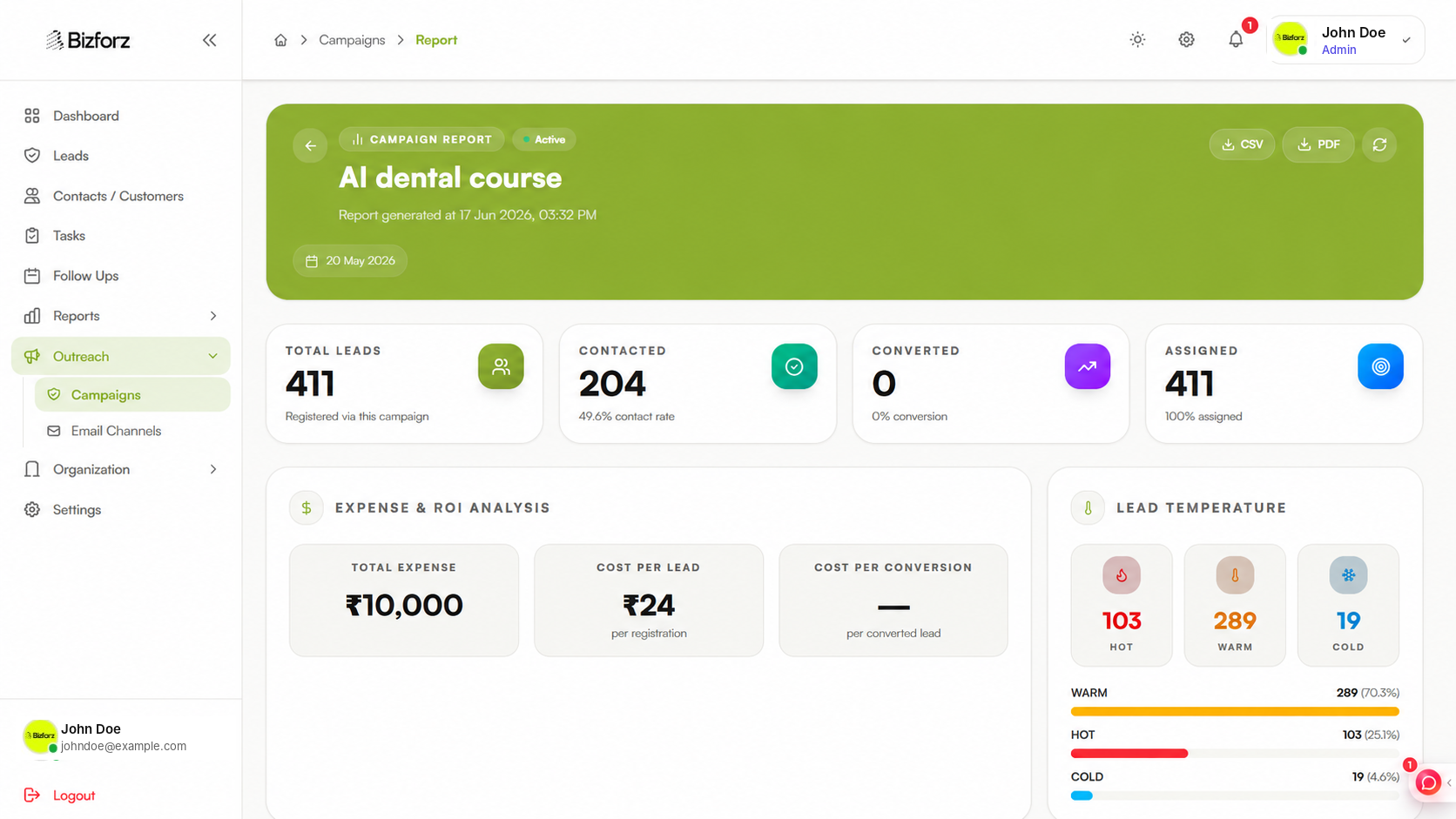
Campaign report

Campaign report

Use campaign screenshots when explaining sources, events, and lead performance.

CRM setup checklist

Start with a simple configuration. Add advanced automation, reports, and integrations after the team is comfortable with the daily lead workflow.

  • Create your organization and activate Bizforz CRM.
  • Invite sales users and assign the right roles.
  • Set lead sources such as website, ads, referral, expo, WhatsApp, and walk-in.
  • Configure lead stages, lead statuses, and one starting pipeline before adding advanced workflows.
  • Add task types, follow-up reminders, and basic reporting views.
  • Connect channels such as WhatsApp, email, Meta Lead Ads, IndiaMART, WooCommerce, webhooks, or call integrations when available.

Core CRM guides

Leads and contacts

Use leads for new opportunities and contacts for people already connected to your business.

  • Create leads with name, phone, alternate phone, email, company, job title, city, country, source, campaign, interests, notes, temperature, and custom fields.
  • Check and resolve duplicates before saving when matching data is detected.
  • Move qualified leads to the right outcome without losing lead history.
  • Use custom fields when your sales process needs industry-specific data.

Pipeline management

Pipelines help managers and sales teams understand exactly where each opportunity stands.

  • Create lead pipelines, lead statuses, and status behavior rules for required follow-up, remarks, proposal, or terminal movement.
  • Move leads between stages individually or in bulk.
  • Use default stage keys such as New, Contacted, Follow Up, Interested, Proposal, Won, and Lost.
  • Use ownership and view-scope permissions so users see the leads they should handle.

Tasks and follow-ups

Keep sales work visible with reminders, owner assignment, and task history.

  • Create follow-up tasks from a lead or contact record.
  • Assign tasks to team members with due dates, priorities, participants, attachments, comments, tags, and subtasks.
  • Review overdue follow-ups before opportunities go cold.
  • Mark follow-ups as pending, done, or cancelled and capture the outcome.

Communication history

Connect customer conversations to the CRM record so every team member sees the same context.

  • Connect WhatsApp Business for embedded signup, template sync, template messages, message listing, and public webhook handling.
  • Configure email channels, test email delivery, and set a default channel.
  • Use approved templates for consistent outreach where required.
  • Log lead interactions and notes against the correct record.

Reports and insights

Use CRM reporting to understand lead sources, team activity, campaign performance, and follow-up quality.

  • Track contacts, leads, unassigned leads, follow-ups, won/lost outcomes, source performance, and conversion rate.
  • Switch between overall performance and my performance where dashboard scope is available.
  • Use reports for campaign performance, staff performance, calls, lead analytics, activity, and revenue views where available.
  • Export leads to Excel and use report export/download options where implemented.

Import and export

Move existing data into CRM cleanly and export reports when your team needs offline analysis.

  • Upload a lead file, preview the import, fix validation or mapping issues, and commit the import.
  • Use lead import only when the user has admin access and the lead import permission.
  • Bulk update lead status from Excel when admin and status-change permissions are available.
  • Export leads when the user has lead export permission.

Campaigns and lead sources

Create outreach campaigns, collect public campaign leads, and measure campaign performance.

  • Create campaigns with source, slug, location, meeting URL, date range, expense amount, poster, attachments, owner, and notes.
  • Enable public forms for campaign lead capture.
  • Manage lead sources and lead purposes.
  • Review campaign performance reports for event, ad, and source ROI.

CRM permissions

CRM uses product access plus permission keys and view scopes to control what users can see and do.

  • Users need CRM product access before they can open CRM work areas.
  • Lead permissions include read, create, update, delete, import, export, assign, bulk assign, reassign, change status, change stage, and bulk actions.
  • Lead visibility can be scoped to own, team, or all records.
  • Admin-only areas include catalog, lead sources, roles, users, departments, designations, pipelines, statuses, integrations, custom fields, form layouts, and reports overview.

Customization

Admins can adapt CRM forms, fields, catalog data, and pipeline behavior to match the business.

  • Create module-based custom fields and validate custom field data on lead forms.
  • Configure module form layouts and resolve public campaign form configuration.
  • Use catalog, interests, departments, designations, lead sources, and lead purposes for cleaner CRM data.
  • Keep the first setup simple, then add advanced layout and field rules after daily CRM use is stable.

Common CRM how-to guides

Create a lead

Open Leads, choose Create Lead, enter contact details, source, campaign, interests, notes, temperature, and custom fields, then resolve duplicates if CRM flags them.

Assign a lead

Open a lead or select leads from the list, choose Assign, and select the staff member. CRM stores assignment history and can notify the assignee.

Move a lead stage

Use the stage dropdown or pipeline action. CRM validates the transition and records the change in activity and status history.

Add a follow-up

Log an interaction from the lead, choose a status that requires follow-up or enter the next follow-up date, and CRM links the follow-up to the record.

Import leads

Open Leads, choose Import, upload the file, preview the import, fix any mapping or validation issues, and commit the import.

Read reports

Open Reports or Call Reports, choose the report type and date range, then review data according to your permission scope.